How to Use Path Exploration in GA4 for SEO
Short answer
GA4 path exploration shows the sequence of pages and events users go through as a tree graph. For SEO, start from an organic landing page to see which pages people open next.
In this article
- How do you create a path exploration in GA4?
- What is the difference between a starting point and an ending point?
- How do you read the nodes in a path exploration?
- View unique nodes only
- How do you separate paths from organic traffic?
- How do you use path exploration in a client report?
- Frequently asked questions
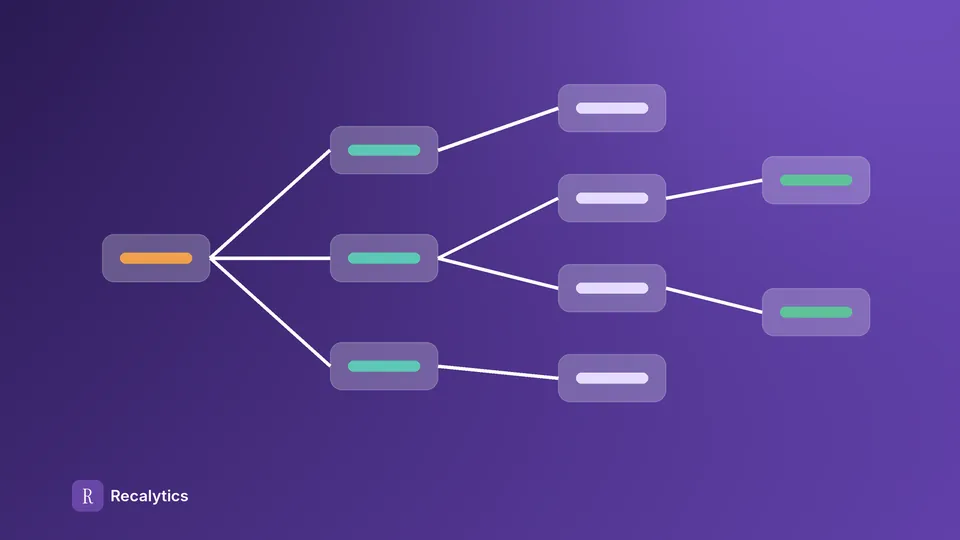
GA4 path exploration is an exploration technique that shows users' pages and events as a tree graph, step by step. Each column of the graph is a step, and each point in a column is called a node.
GA4 path exploration is used when a client asks where visitors from Google go after reading an article or a service page. This guide covers how to create the exploration, how to read it, how to separate organic traffic, and its limits.
How do you create a path exploration in GA4?
To create a path exploration, open Explore, then choose the Path exploration template under Start a new exploration. The Google account you use needs access to the GA4 property.
- Open Explore in the GA4 left navigation.
- Choose the Path exploration template.
- Click Start over to replace the default starting point.
- Choose the starting point, for example Page path and screen class, then pick the page to follow.
- Click a node in the first step to open the next step.
The graph shows the top 5 nodes in each step. The + More button adds up to 20 nodes per step, and the rest are grouped into an Others node.
What is the difference between a starting point and an ending point?
A starting point shows the paths forward from one page or event. An ending point shows the paths backward to that page or event. One exploration uses one or the other.
| Option | Question it answers | SEO example |
|---|---|---|
| Starting point | Where do users go after this page? | Pages opened after a blog article that gets traffic from Google |
| Ending point | Which pages come before this event? | Pages opened before a contact form is sent |
Backward paths are created by clicking Start over, then choosing the ending point box. An ending point set to an event suits key events, for example generate_lead. Marking key events is covered in the GA4 key events guide.
How do you read the nodes in a path exploration?
Read a node by its number, which is the event count by default, or the user count when the metric is switched to Total users. Gray nodes can't be opened further.
The node type is chosen with the starting point: event name, page title, page path, screen name, or screen class. Each step's node type can be changed from the menu above that step's column.
View unique nodes only
View unique nodes only merges repeated events on the same page into one node. A user who returns to that page in a later step still shows up as a new node.
Excluding a node only hides it from the graph. Excluding doesn't change how the paths are calculated.
How do you separate paths from organic traffic?
Separate paths from organic traffic by dragging an Organic Search session segment to the segment target in Tab settings. Segments apply before the paths are calculated, so sessions outside the segment don't affect the result.
Steps to create the organic segment:
- In the Variables panel, click the + next to Segments.
- Choose Session segment, then add the condition Session default channel group exactly matches Organic Search.
- Save the segment, then drag it to the segment target in Tab settings.
Filters also apply before the paths are calculated, for example for one device type. A breakdown shows the top 5 values of a dimension in each node, for example device category.
How do you use path exploration in a client report?
Path exploration is used in a client report to show the next pages from the 3–5 largest organic landing pages. Write the result as a percentage, for example 18% of users opened the pricing page after the article.
Pick the landing pages from the Landing page report, then build one exploration per page. Write down the period and segment used, so next month's numbers can be compared.
Recalytics pulls each client's GA4 data through the API every month, including organic landing pages. Path exploration results are added to that report as a note.
Frequently asked questions
How many nodes are shown per step?
The graph shows the top 5 nodes per step. The + More button adds up to 20 nodes.
Can one path exploration use a starting point and an ending point?
No. One exploration uses either a starting point or an ending point.
Do segments change the path results?
Yes. Segments apply before the paths are calculated.
Sources
The Recalytics Team writes guides on SEO and analytics reporting for digital agencies and website owners, based on Google's official documentation and Search Console and GA4 data.